

For IT Operations Managers and HR Directors, a Notion workspace isn't just a notes app, it’s the central nervous system for compliance data, visa renewals, and mission-critical SaaS contracts. We have all experienced that sudden cold sweat when a complex database record vanishes or a senior executive accidentally wipes a year’s worth of audit logs. (Source: Notion Productivity Experts, 2026)
The good news is that Notion is built with a multi-layered safety net. Whether you made a simple typo or accidentally "burned your system to the ground" during a late-night overhaul, there is almost always a way back. In this 2026 guide, we will walk through every recovery method, from basic shortcuts to the new enterprise-grade Archive feature.
Quick Fix: The 'How to Undo in Notion' Shortcuts
The fastest way to recover from an accidental edit is the standard "Undo" command. This works precisely like it does in Google Docs or Microsoft Word, but with a few Notion-specific nuances regarding database blocks.
Desktop Keyboard Shortcuts (Windows & Mac)
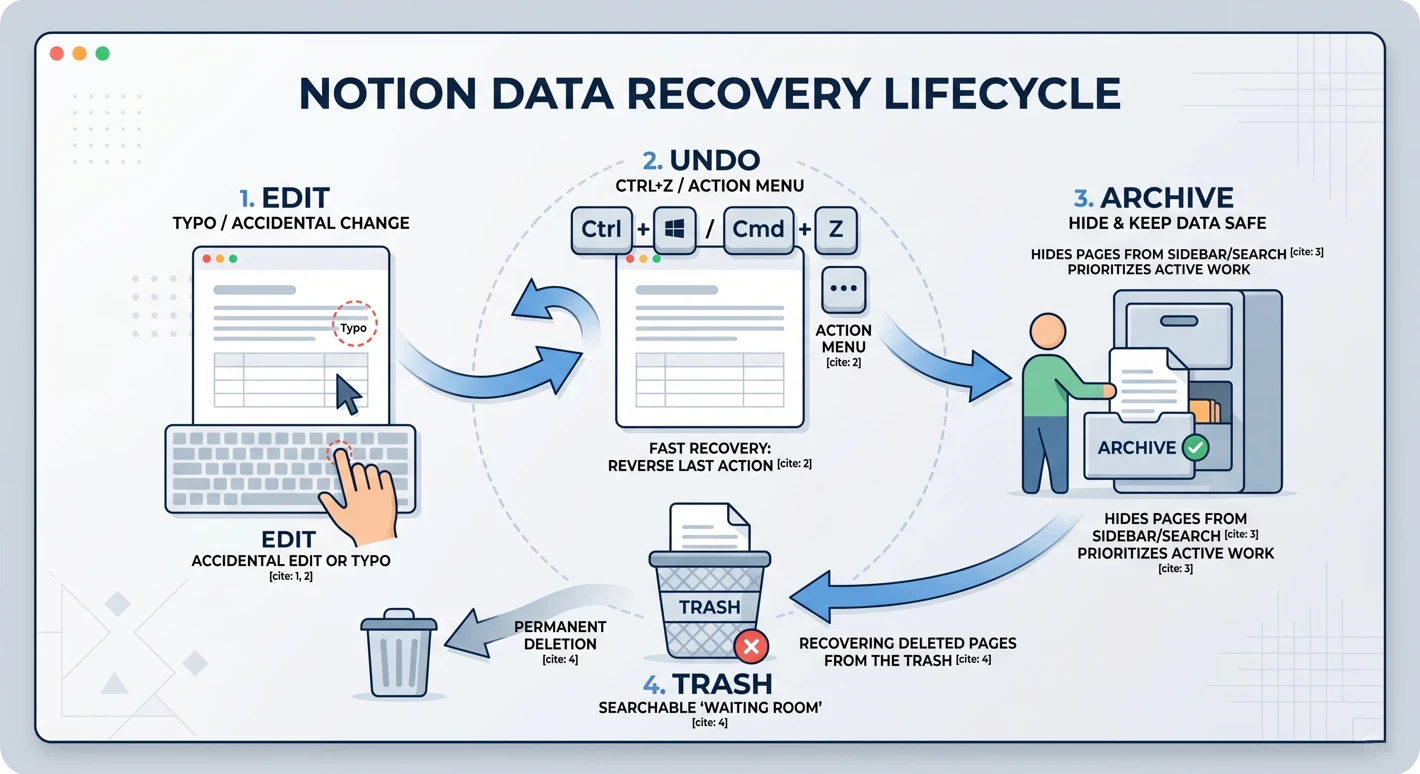
If you are working on the desktop app or a web browser, your first move should always be the universal shortcut. This reverses your last action immediately, whether that was deleting a line of text, changing a property value, or accidentally moving a block.
| Operating System | Undo Shortcut | Redo Shortcut |
|---|---|---|
| Windows / Linux | Ctrl + Z | Ctrl + Shift + Z (or Ctrl + Y) |
| Mac (macOS) | Cmd + Z | Cmd + Shift + Z (or Cmd + Y) |
Pro Tip: If you are trying to how to undo on notion and the shortcut isn't responding, ensure your cursor is active within the Notion window. If you just clicked out to another app, the shortcut might not register.
The Notion Undo Menu: No Keyboard Required
For those who prefer a mouse-driven workflow, or if you are using a tablet without a keyboard, you can access the undo function through the interface.
- Navigate to the top-right corner of your Notion page.
- Click the "..." (three-dot icon).
- Select Undo from the dropdown menu.
This menu also houses the "Redo" option if you accidentally undo too many steps. (Source: NotionApps Blog, 2025)
How to Undo in the Notion Mobile App
To undo in the Notion mobile app, you have two primary options: the "Shake to Undo" gesture on iOS or the Action Menu available on both Android and iOS. For iPad and iPhone users, a gentle shake of the device will trigger a prompt asking if you want to undo your last action. On Android, the 2026 update has standardized the two-finger swipe from left to right across the keyboard as a native undo gesture, though this may vary by device manufacturer.
iOS: Shake to Undo vs. Action Menu
Apple users have long relied on the "Shake to Undo" feature. While it feels intuitive, it can be frustrating in a busy office or on a commute. If shaking your phone isn't your style, you can tap the "..." menu in the top-right of the Notion mobile app and tap Undo. This is often more reliable for precise recovery of database edits.
Android: The 2026 Gesture Navigation Update
With the latest Android OS releases, gesture navigation has become the primary way to interact with apps. In the Notion Android app, you can now use the "System Undo" gesture, swiping inward from the edges of the keyboard area, to revert text entries. For structural changes, such as moving a block or deleting a page, the Action Menu (three dots) remains the gold standard for reliability.
Deep Recovery: Page History vs. The 2026 Archive Feature
Sometimes, a simple Ctrl + Z isn't enough. If you closed your laptop, refreshed the page, or discovered a mistake that happened three days ago, you need to dive into Notion's "Time Machine" features.
Restoring Versions with Page History
Page History is the ultimate insurance policy for Notion power users. It allows you to view snapshots of your page from minutes, hours, or even days ago.
- Click the "..." icon in the top-right.
- Select Page History.
- Browse the versions on the right-hand sidebar. You can "Restore" a version to replace the current page, or simply copy-paste a specific block from the past back into your live page.
Note: How far back you can go depends on your plan. Free plans typically offer 7 days, while Plus and Business plans offer 30 to 90 days.
Archive vs. Trash: Which One Should You Use?
A common mistake is treating the Trash as a storage bin. In 2026, Notion introduced the Archive feature to solve "digital hoarding." Experts now suggest that you should archive pages you no longer need but might want to reference later. Archiving hides the page from your sidebar and search results, prioritizing your active work and AI results, but keeps the data safe. (Source: Marie Poulin, Notion Expert, 2026)
Save the Trash for items you genuinely want to delete. Remember: The Trash is searchable, but it is a "waiting room" for permanent deletion.
Recovering Deleted Pages from the Trash
If you accidentally deleted an entire page, do not panic.
- Click Trash at the bottom of your left-hand sidebar.
- Search for the page name.
- Click the Restore (curved arrow) icon.
Advanced Data Safety: Preventing the Need for 'Undo'
For high-stakes environments like HR or IT Operations, the best "undo" is the one you never have to use. High-performing teams use preventative measures to ensure their "source of truth" remains immutable.
Using Page Locks for Critical Databases
If you have a database that tracks SSL certificate expirations or employee visas, you should almost always have Page Lock enabled. This prevents accidental edits to the layout or data while still allowing users to view the information. You can toggle this in the "..." menu.
Linked Views: The 'Safety Buffer' for Source Data
A major best practice for 2026 is avoiding work directly in your master databases. Instead, create a "backend" Teamspace for your source data and use Linked Views on your dashboard. This way, if someone accidentally deletes a view or messily filters a table, the original master data remains untouched and safe. (Source: Notion RevOps Community, 2026)
Notion Offline and Recovery Risks
While notion offline mode has improved significantly, it introduces a unique recovery risk: sync conflicts. If you make changes in notion offline on two different devices, the "Undo" history may become fragmented once you reconnect. Always wait for the blue sync bar to complete before performing bulk edits after working offline to ensure your recovery ledger is accurate.
This "operational anxiety" is exactly why we built NotionReminder. While Notion is great at storing data, its native automations are strictly event-driven. If you accidentally change a date property, you might not realize it until a deadline has passed. NotionReminder provides a deterministic safety net, polling your databases in the background and delivering flawless alerts to Slack or Email, regardless of whether your team is clicking "undo" or "archive" in the workspace.
Frequently Asked Questions
Can you undo in Notion after closing the page?
The standard "Undo" command only works while the page remains open in your current session. Once the page is closed or refreshed, you must use Page History to revert changes. (Source: Notion Support, 2026)
Does Notion have an undo button?
Yes, you can find the Undo button by clicking the "..." (three-dot) menu in the top-right corner of any page. It is located near the top of the dropdown list.
How far back does Notion Page History go?
Page history duration depends on your plan. Free users get 7 days, Plus users get 30 days, and Business/Enterprise users get up to 90 days or more of historical snapshots.
How do I undo a page deletion?
To undo a page deletion, navigate to the Trash icon in your sidebar, search for the page, and click the Restore icon. This will return the page to its original location.
Conclusion
Mastering the "Undo" in Notion is the first step toward operational confidence. For the quick typo, Ctrl + Z is your best friend. For the accidental database wipe, Page History is your safety net. And for long-term workspace hygiene, the new 2026 Archive feature is the professional standard.
However, even the best recovery tools can't help if you don't know a mistake was made. Secure your mission-critical Notion deadlines today with a deterministic alerts engine that guarantees you never miss a compliance threshold, even when your workspace is in flux.
Try NotionReminder for free today.
